Snapshot groups
A snapshot group runs several snapshot subscriptions (its members) together: in a set order, several at a time, with one schedule and shared error handling. A snapshot subscription can belong to several groups and still run on its own. For how a group run works, its actions and Checkpoint/Restart, see Manage snapshot groups.
When to use one
- Related tables that must be copied together, for example a nightly reload of reporting tables.
- Foreign keys between tables: the group drops them first and creates them again after all members are copied.
- One schedule for the group rather than one per subscription.
- Restart: with Allow Checkpoint/Restart, a failed group run can resume where it stopped.
Create a snapshot group
- Open Groups and click New (New Group).
- On General, name the group (Step 1).
- On Advanced, choose the Source and Destination for imported subscriptions, a Destination DDL Option and a Baseline Type: the group can't be saved without them (Step 2).
- On Subscriptions, add existing snapshot subscriptions in the order they should run, or add them later (Step 3).
- To run the group automatically, schedule it on Schedule (Step 4). Click Save.
You can also create a snapshot group while you create a subscription, on the Subscription Wizard's Group step, with New....
The New Group dialog, step by step
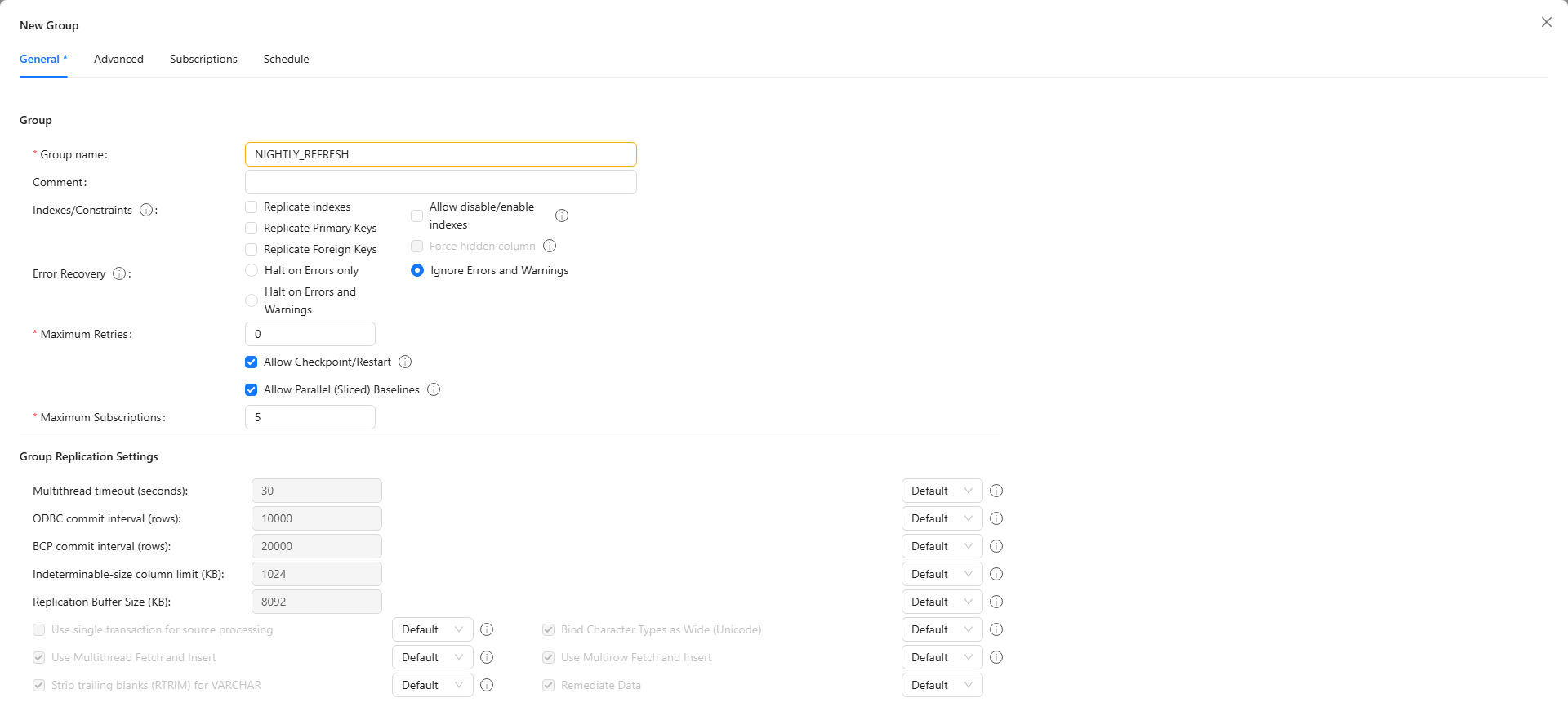
Step 1: General
Name the group, and decide how its runs behave.
| Option | When to change it |
|---|---|
| Indexes/Constraints | To create the source's indexes, primary keys or foreign keys at the destination for every member, whatever each subscription's Indexes step says. Foreign keys are dropped before the members are copied and created again afterwards. Allow disable/enable indexes (SQL Server and Oracle destinations) makes copies faster. |
| Error Recovery | By default, the run goes on when a member fails. Choose a Halt option when later members depend on earlier ones, to stop at the first error (or warning). |
| Allow Checkpoint/Restart | On by default: a run that fails or is stopped resumes where it left off. See Checkpoint/Restart. |
| Maximum Retries | With Checkpoint/Restart: retry a failed member in the same run, to ride out short failures such as a lost connection on large tables (default 0). |
| Allow Parallel (Sliced) Baselines | Members set up for a parallel baseline copy it in slices. |
| Maximum Subscriptions | How many members are copied at once (default 5). Set 1 to copy them one at a time, in order. |
| Group Replication Settings | To change one of the Replicator Service's replication settings for this group only: choose Override next to it. See Replication defaults. |
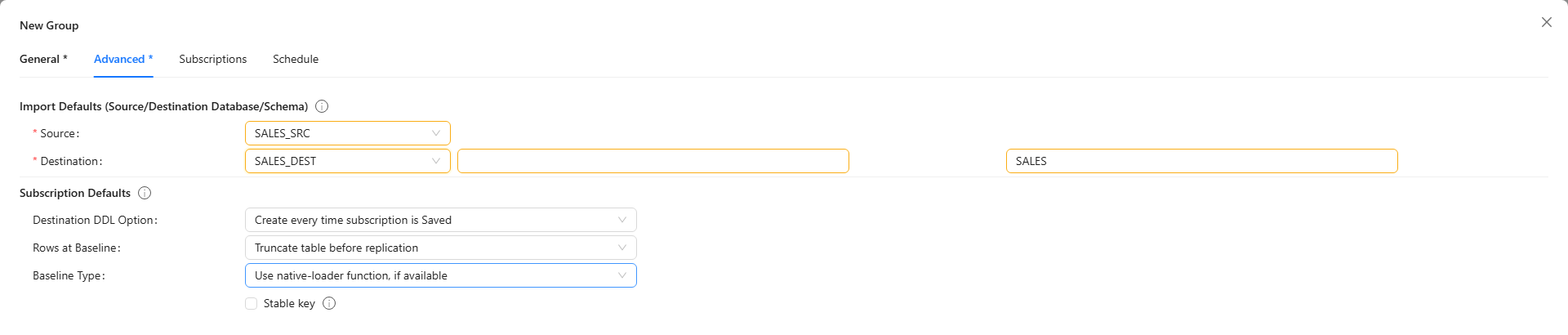
Step 2: Advanced
Set the defaults for subscriptions added to the group without the Subscription Wizard.
| Section | What to decide |
|---|---|
| Import Defaults | The source and destination (with its database and schema) for subscriptions you import into the group with Import Subscriptions. |
| Subscription Defaults | How the destination table is created, the baseline type and Stable key for subscriptions created in the group without their own values, for example by the New-Subscription cmdlet. |
See Snapshot groups: Advanced.
Step 3: Subscriptions
Optional: add existing snapshot subscriptions, in the order they should run.
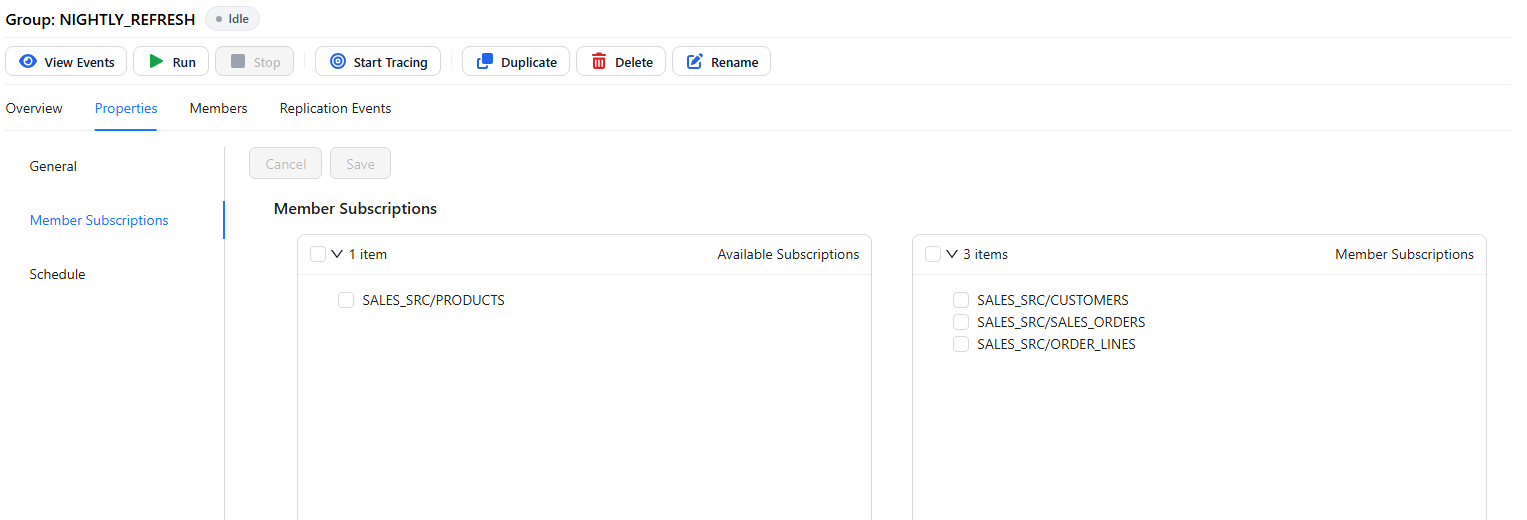
Move them to Group Subscriptions and drag them into order: members start in this order. You can also add them later. See Subscriptions.
Step 4: Schedule
Optional: run the group automatically, one time or recurring.

See Scheduling.
After you save
The group runs on its schedule, or when you run it (see Manage snapshot groups).
Next steps
- Add subscriptions: create them with the Subscription Wizard and choose the group on its Group step, or add existing ones from the group's Subscriptions tab with Insert Subscription (see Add members to a group).
- Manage snapshot groups: run the group, and Checkpoint/Restart.
- Group properties: change a group's settings.