Remote journals
IBM i remote journaling copies a journal's entries to a journal on another IBM i system. A Db2 for i Capture Agent can read the changes from that remote journal instead of the local one, to reduce the load on the production system or the network traffic from it.
How it works
- Stelo Capture can use type 1 or type 2 remote journals, synchronous or asynchronous delivery, and broadcast or cascade to several systems (see Set up remote journaling on the IBM i).
- The Capture Agent stays connected to the production (primary) system: it still manages the subscriptions there, and the Replicator Service still takes the baselines from the source tables.
- You map a local journal to a remote journal on the agent's Remote Journals tab; for each mapped journal, the agent reads the entries from the remote system.
Set up remote journaling on the IBM i
The IBM i administrator does this part before you map the journals in the SQDR Control Center. The primary system holds the source tables and their local journal, and the Capture Agent stays connected to it; the remote system holds the remote journal, which the Capture Agent reads.
Decide first
- Delivery mode: asynchronous (the default) or synchronous. Stelo Capture can use either.
-
Remote journal type: Stelo Capture can use either; we recommend type 2 for its flexibility.
- Type 1, typical for high-availability backup systems: the library redirection can't be changed later, and the remote journal must have the local journal's name and library.
- Type 2, typical for disaster recovery sites: the library redirection can be changed, and names are more flexible.
See IBM's Remote Journal on i5/OS – Are You Selecting the Right Type?
With CL commands
We recommend, but don't require, the same user profile (the owner of the tables) on both systems. MYRMTSVR,
MYLIB/MYJRN and mypass are examples.
On the remote system:
- Find the relational database (RDB) name with
WRKRDBDIRE. If no name is defined for the*LOCALdatabase, add one withADDRDBDIRE. - Create the user profile (the owner of the tables). You need its password for
ADDSVRAUTEon the primary system. - Create a library for the remote journal. Its name can't begin with
Q, and the user above needs full authority to it. For a type 1 remote journal, use the name of the journal's library on the primary system. - Create a library for the journal receivers, if they're in another library than the journal on the primary system.
On the primary system, as a user with *SECOFR authority:
-
Add an RDB directory entry for the remote system with
ADDRDBDIRE:Relational database: MYRMTSVR Remote location: (the remote system's host name or IP address) Type: *IP Port number or service name: *DRDA Remote authentication method: Preferred method: *USRENCPW Allow lower authentication: *ALWLOWER Secure connection: *NONE Encryption algorithm: *DES -
Add the server authentication entry. Signed on as the owner of the tables, authorize the connection to the remote system:
ADDSVRAUTE USRPRF(*CURRENT) SERVER(MYRMTSVR) PASSWORD(mypass)Related commands:
CHGSVRAUTE,RMVSVRAUTE,DSPSVRAUTE,GO CMDAUTE. -
Add the remote journal:
ADDRMTJRN RDB(MYRMTSVR) SRCJRN(MYLIB/MYJRN) TGTJRN(MYLIB/MYJRN) RMTJRNTYPE(*TYPE2) DLTRCV(*YES) -
Activate it: a new remote journal is inactive and receives no entries until then.
CHGRMTJRN RDB(MYRMTSVR) SRCJRN(MYLIB/MYJRN) TGTJRN(MYLIB/MYJRN) JRNSTATE(*ACTIVE) -
Check its status with
WRKJRNA MYLIB/MYJRN: F16 for the remote journal information, F6 for the remote journal list, where you can also activate or deactivate it. Option 5 (Display remote journal details) shows statistics such as Maximum entries behind and Maximum seconds behind.
To deactivate and remove the remote journal:
CHGRMTJRN RDB(MYRMTSVR) SRCJRN(MYLIB/MYJRN) TGTJRN(MYLIB/MYJRN) JRNSTATE(*INACTIVE)
RMVRMTJRN RDB(MYRMTSVR) SRCJRN(MYLIB/MYJRN) TGTJRN(MYLIB/MYJRN)
With IBM Navigator for i
Instead of ADDRMTJRN, you can add the remote journal in IBM Navigator for i. You still add the RDB directory entry
and the server authentication entry with ADDRDBDIRE and ADDSVRAUTE as above.
- In IBM Navigator for i, connect to the primary system and expand Journal Management.
- Select Set Database/Library to use with Journal Tasks and choose the database and the journal's library.
- Select Journals, select the journal, and choose the Add remote journal action.
- Activate the remote journal: it's added inactive.
See IBM's Adding remote journals and Activating the replication of journal entries to a remote journal (IBM i 7.5).
Set up a remote journal
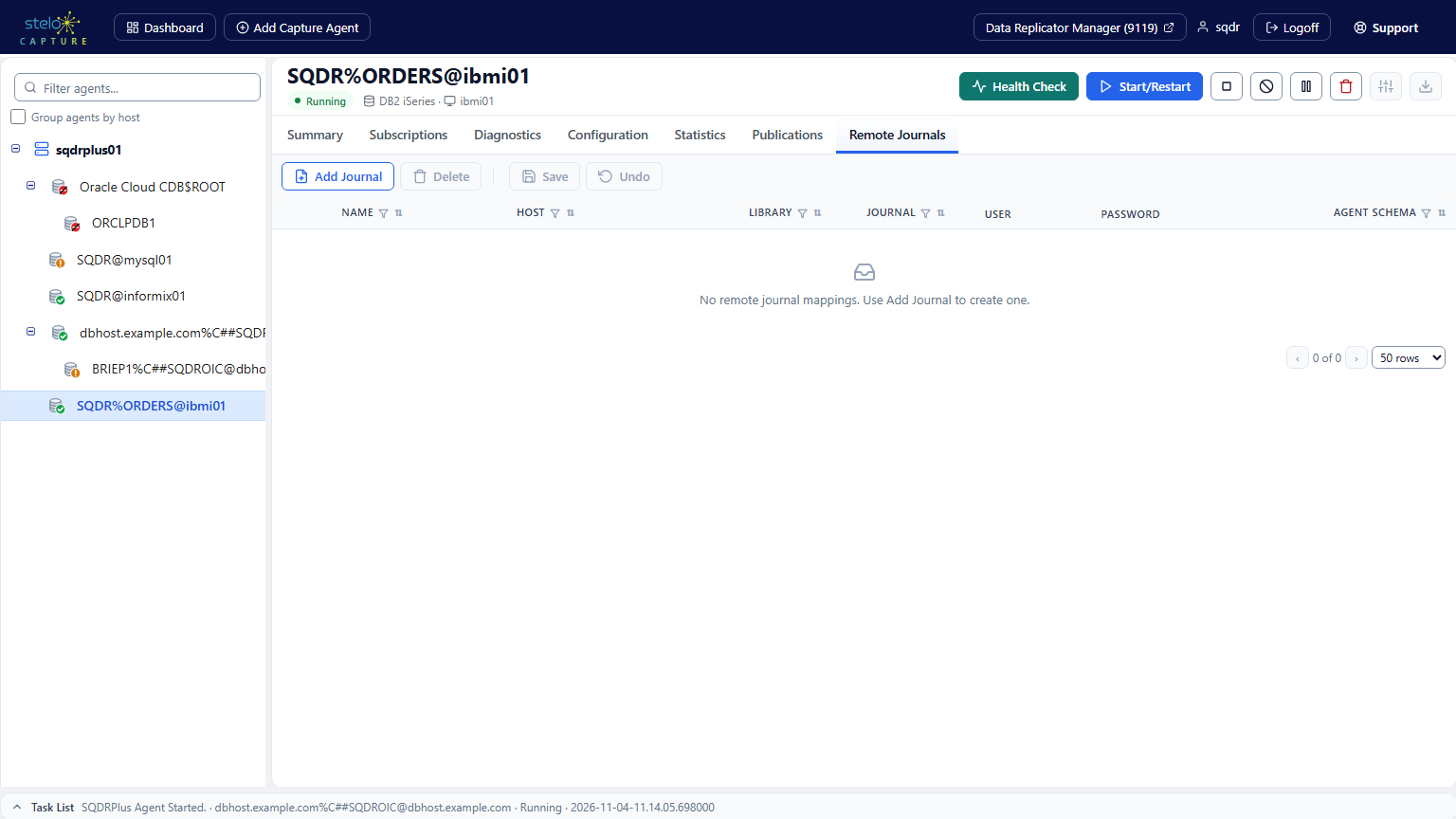
- On the IBM i: set up and activate remote journaling on both systems (see Set up remote journaling on the IBM i).
-
On the Remote Journals tab of the primary system's agent, click Add Journal, choose the local journal and one of its remote journals (for example
RMTLIB/QSQJRN@RMTSYS; with broadcast, one for each target).If the list shows "<No Remote Journal Detected>", check the remote journal configuration and that the agent user (for example
SQDR) has enough authority to the journal and its library. -
Complete the mapping's row:
Column What to enter Host, Library, Journal Filled in. For a cascade, change them to the system at the end of the cascade and its journal. User A user on the remote system that can create a user profile and a library, restore a library, change ownership and grant authority, for example QSECOFR. It owns the journal-reading programs there.Agent Schema The library (collection) to create and fill on the remote system, for example SQDR. Not a library another Capture Agent uses: if the remote system is also another agent's source, use another name (for exampleSQDRRMT). -
Click Save and confirm.
What Save does on the remote system
Connecting as the User you entered, Stelo Capture:
- Stops with an error if the Agent Schema library holds an SQDR Plus v3 agent ("…contains an older version of SQDRPlus for iSeries, please use another schema.").
- Creates the library if it doesn't exist.
- If no Stelo Capture agent uses the library yet: creates a user profile with the library's name and no password
(
*NONE) if it doesn't exist, and restores the Stelo Capture programs into the library. - Stores the mapping, with the password encrypted, in the agent's control library on the primary system.
Remove a remote journal mapping
- On the agent's Remote Journals tab, delete the mapping and click Save: nothing is removed until you save.
- If you no longer need them, remove the Stelo Capture objects from the remote system (see Remove the programs).
The agent then reads that journal on the primary system again.
Update the programs on the remote system
Update Host on the agent of the primary system also updates the programs on the remote systems of its mappings (see Update Host).
Remove the programs from the remote system
If you used the library SQDR on the remote system:
-
Remove the registration of the exit program
SQDR/CADLTRCVfor the exit pointQIBM_QJO_DLT_JRNRCV, either withCALL PGM(SQDR/CALOGMGMT) PARM('U' 'SQDR')or with
WRKREGINF: enter8next to exit pointQIBM_QJO_DLT_JRNRCVformatDRCV0100, then4next to exit programCADLTRCVin librarySQDR, and press Enter. -
Delete the library:
DLTLIB SQDR -
Delete the user profile:
DLTUSRPRF SQDR
Related
- IBM i 7.5: Remote journal management (7.2: Remote journal management)
- IBM Redbook AS/400 Remote Journal Function for High Availability and Data Replication (SG24-5189)
- IBM: Journal Filtering in IBM System i 7.1 and Journaling - Common Remote Journal Questions
- Start, stop and delete a Capture Agent