SSL/TLS to a SQL Server source
Overview
The SQL Server JDBC driver that Stelo Capture uses encrypts its connections by default, and the Add Capture Agent
wizard adds trustServerCertificate=true to the agent's connection string (property sourceDbUrl). So a new SQL
Server agent connects encrypted but doesn't check the server's certificate. Follow this page when the agent must also
verify the certificate, or when you set up encryption on the server.
These steps assume a Microsoft Windows Certificate Server on your Windows domain, with the SQL Server and the SQDR
server both members of the domain. Another type of certificate authority, or several domains, may need more setup.
For SQDR's own ODBC connections you can skip certificate verification with TrustServerCertificate=yes.
Install a certificate on the server with MMC
- Run
MMC. - On the Console menu, click Add/Remove Snap-in..., click Add, select Certificates and click Add again.
- Select Computer Account, choose Local Computer and click Finish. Close the Add Standalone Snap-in dialog and click OK.
- Open Personal › Certificates in the left-hand pane.
- Right-click in the right-hand pane and choose All Tasks › Request New Certificate....
- In the Certificate Request Wizard, select the Certificate type "computer" and optionally enter a friendly name. If the Certificate Server issues certificates automatically, the certificate is available at once; otherwise, wait for an administrator to approve it.
- The issued certificate appears in the folder under the computer's fully qualified domain name.
Grant the SQL Server service account read access to the private key
- In the Services control panel, find the account the SQL Server service logs on as (for example
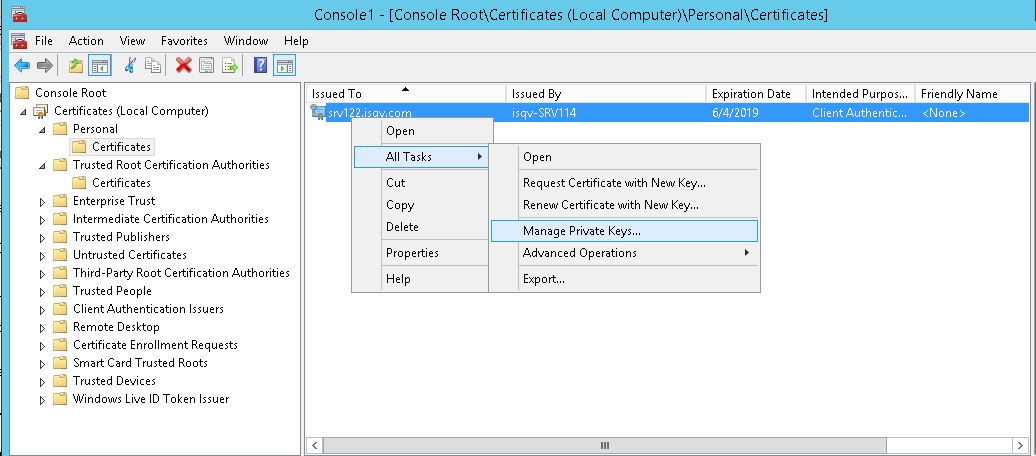
NT Service\MSSQL$SQLEXPRESSor a domain account). - In MMC's Certificates snap-in, right-click the certificate, choose Manage Private Keys and grant that account Read permission.
Enable encryption at the server
- In SQL Server Configuration Manager, expand SQL Server Network Configuration, right-click Protocols for
and select Properties. - On the Certificate tab, select the certificate and click OK.
- On the Flags tab, set ForceEncryption to Yes and click OK.
- Restart the SQL Server service.
Configure Stelo Capture
Export the CA certificate of the certificate server
- On the SQL Server's computer, in MMC's Certificates snap-in, open Trusted Root Certificate Authorities ›
Certificates, right-click the certificate authority's certificate (for example
mydomain-MYCERTSRV) and choose All Tasks › Export.... - Export it as Base-64 encoded X.509 (.CER), and copy the file to the Stelo VM.
Add the CA certificate on the Certificates tab
- Open the exported certificate in a text editor and copy all of it, from
-----BEGIN CERTIFICATE-----to-----END CERTIFICATE-----. - Add it on the SQDR Control Center's Certificates tab, with an Alias such as
MYSQLSERVER.
See The Certificates tab for where the keystore is and what to restart afterwards.
Create or change the Stelo Capture agent
- Create the SQL Server agent as usual (see SQL Server as a source), with the SQL Server's fully
qualified host name as Host Name (not
localhostor an IP address), so that it matches the certificate. -
On the agent's Configuration tab, change
trustServerCertificate=truein thesourceDbUrlproperty totrustServerCertificate=false, and make sure it containsencrypt=true. For example:jdbc:sqlserver://myhost.mydomain.com\SQLEXPRESS;databaseName=MYDATABASE;selectMethod=cursor;queryTimeout=3600;encrypt=true;trustServerCertificate=false; -
Saving restarts the agent if it's running. Check the Diagnostics tab for errors.
Set trustServerCertificate=false explicitly: if sourceDbUrl has no trustServerCertificate setting, the agent
adds trustServerCertificate=true when it connects.
Configure SQDR's ODBC data source or connection string
- Use the fully qualified name (for example
myhost.mydomain.com\SQLEXPRESS), notlocalhost, an unqualified name or an IP address. - In an ODBC data source, select Use strong encryption for data; in a connection string, add
Encrypt=Yes. - Check with Test Data Source in the ODBC Administrator. It should report INFO: Connection was encrypted with server certificate validation. Without the encryption setting, the client may still connect but report INFO: Data encryption was enforced by server or client machine-wide setting, and INFO: Connection was encrypted without server certificate validation.
Troubleshooting
Problems and messages, with their causes and fixes, are in Troubleshooting › SQL Server.