Change a Capture Agent's configuration
Each Capture Agent, and the Launch Agent that starts the agents, has configuration properties: how it connects to the source and staging databases, how much it logs, how often it prunes, whether tables must be published, and so on. You change them on the agent's Configuration tab in the SQDR Control Center.
Most properties are set when the agent is created and never need changing. Change them when a Stelo guide or Stelo Support tells you to, or to tune an agent as this manual describes (for example pruning or maintenance windows). What each property does is in Configuration properties.
Change a property
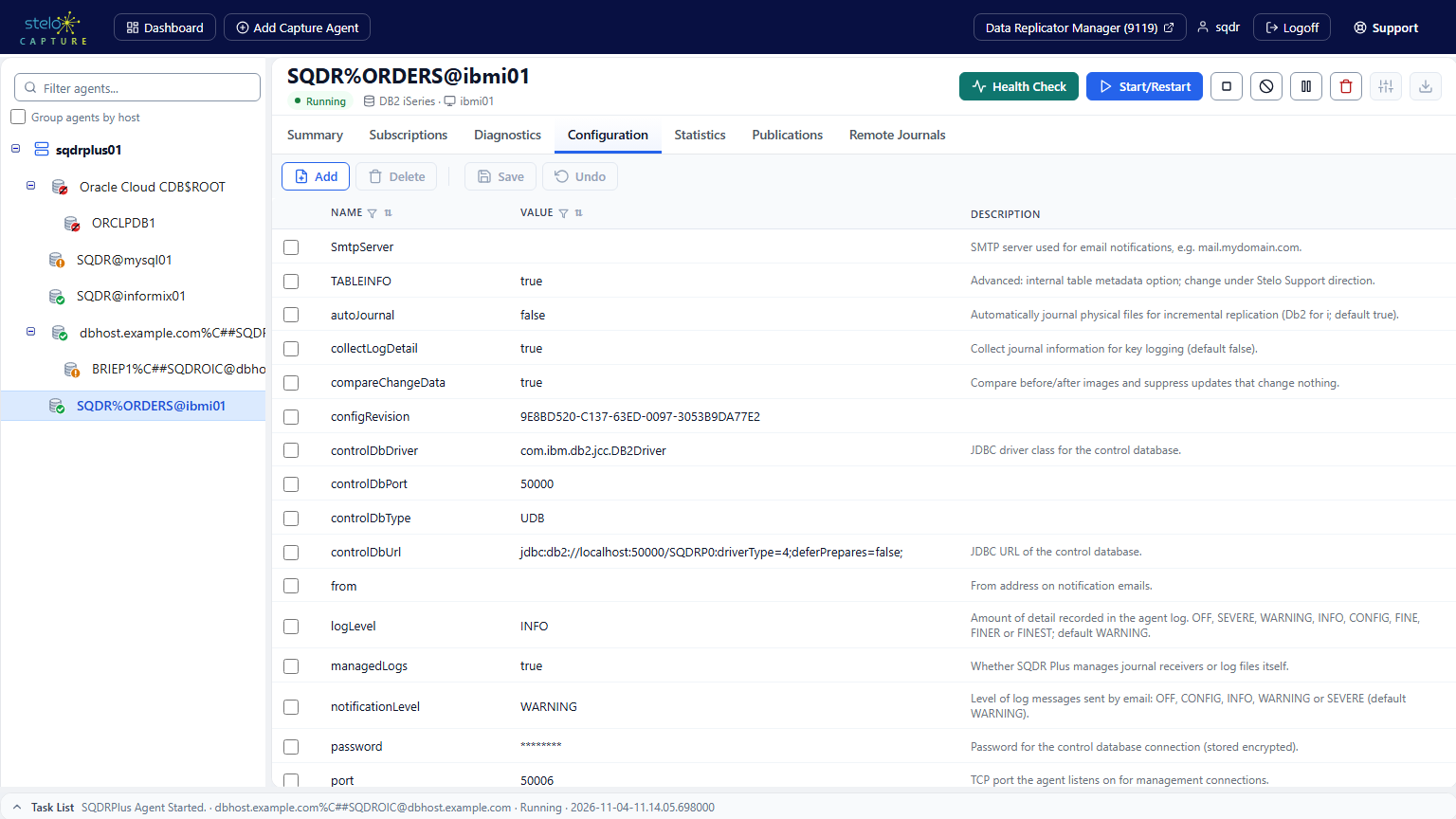
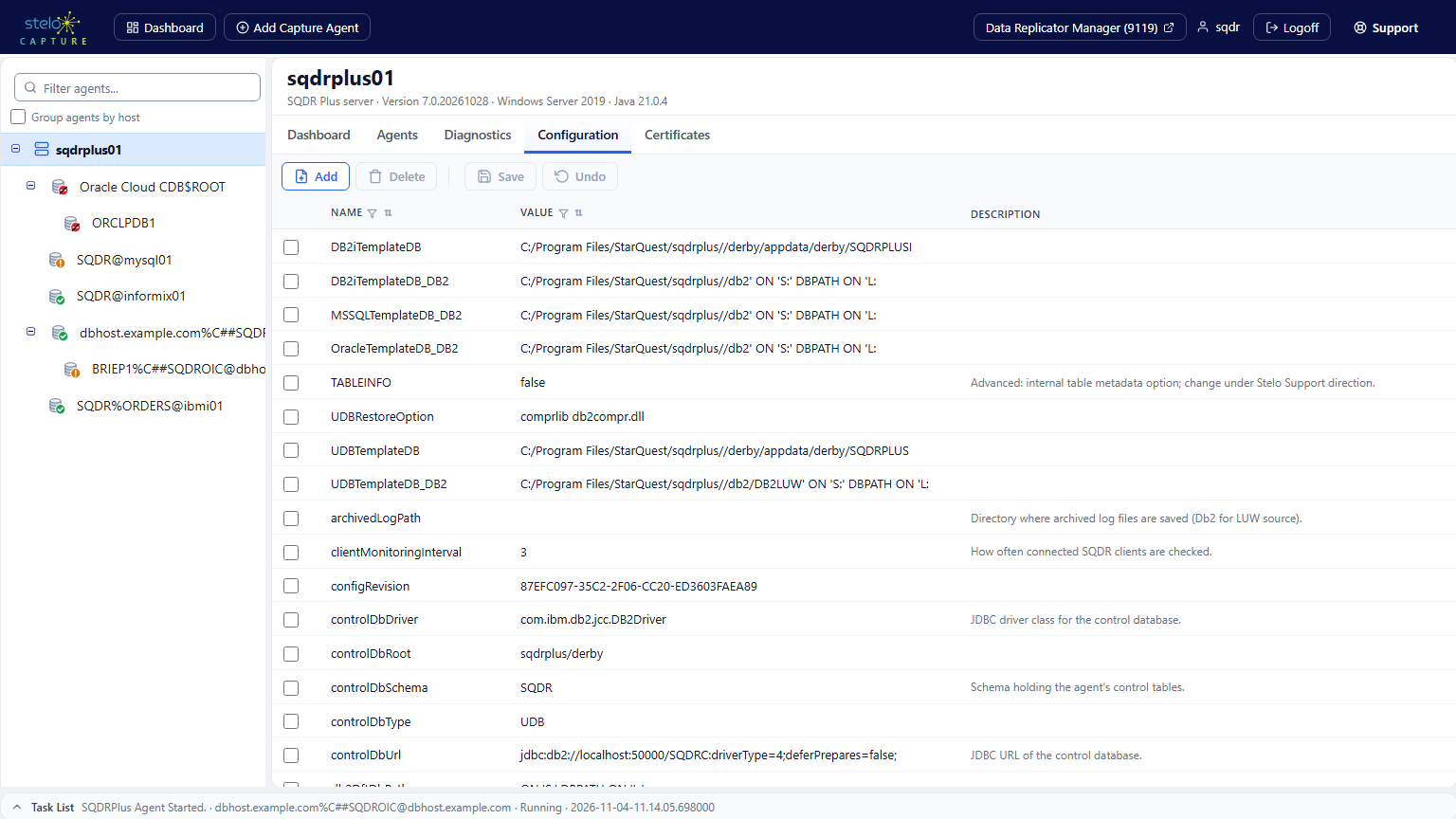
- In the SQDR Control Center, select the agent and open its Configuration tab. For the Launch Agent, select the server node. The tab lists only the properties set for the agent; the others use their default.
- Change the property's value, or add the property if it isn't listed.
- Click Save. A running Capture Agent restarts (see What happens when you save).
- Check the agent's Diagnostics tab: the values aren't checked when you save.
To return properties to their default, select them and click Delete. It also removes selected properties that a filter hides.
Add a property
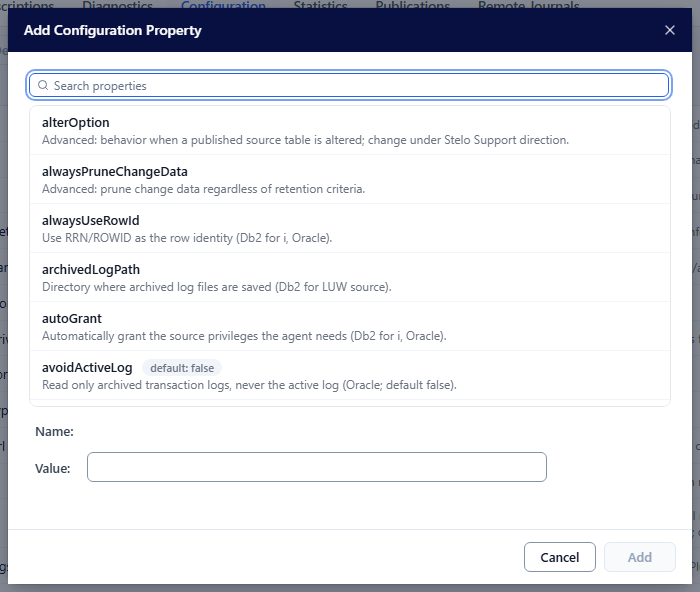
Add lists the properties that aren't set yet; the search matches their descriptions as well as their names. Choose the property, check its value, and click Save on the tab.
To add a property that isn't listed, type its full name and choose Add as a custom property. The agent ignores names it doesn't know, so check the spelling.
Check the prefilled value
The value Add fills in comes from the documentation, and for some properties it isn't what the agent uses when
the property is absent (for example autoJournal, receiverLibrary, NotificationLevel, starquestNotification
and maxLogFileSize). Adding the property with that value can change the agent's behaviour. Check the value
against Configuration properties before you save.
What happens when you save
- A running Capture Agent restarts. The Launch Agent stops it, writes the new properties and starts it again: the agent reads its properties only when it starts. A stopped or disabled agent isn't started.
- Saving the Launch Agent's configuration doesn't restart anything. The Launch Agent reloads its properties.
- Passwords are encrypted. Type the new password in plain text in
password,sourcePassword,xstreamPassword,mailPasswordorstarquestMailPassword; the tab then shows the encrypted value. ChangingpasswordorsourcePasswordalso updates the credentials the Launch Agent keeps for the agent, and a newsourcePasswordgoes to the Oracle pluggable-database agents that share the source. See Change the passwords Stelo Capture uses. - Values aren't checked. The agent ignores a misspelled name, and a wrong value can stop it from starting or be silently replaced by the default.
- Names aren't case-sensitive (
pruneintervalandpruneIntervalare the same property).
Where the properties are stored
You need this only to edit the file by hand when an agent can't start.
| Where | What |
|---|---|
sqagent.properties in the agent's folder |
The file the agent reads when it starts. Windows: C:\ProgramData\StarQuest\sqdrplus\conf\agtN (Launch Agent: ...\conf). Docker: /var/sqdrplus/conf/agtN. |
A copy in the agent's staging database (for the Launch Agent, in SQDRC) |
Written at every save, with a new revision (configRevision). When the copy's revision differs from the file's, the agent uses the copy's values, and the Launch Agent rewrites the file from the copy when it starts the agents. This keeps both members of a Db2 HADR pair on the same configuration. |
Editing sqagent.properties by hand doesn't update the copy. Do it only when the agent can't start (for example after
a password change, see Change the passwords Stelo Capture uses), then save
the configuration once on the Configuration tab so both copies match.